WHATSAPP AUTOMATION · API · NODE.JS SDK
Automate WhatsApp.
Build it into your app.
Automate customer conversations with AI and visual workflows. Add WhatsApp messaging to your own app with our API and Node.js SDK.
- Visual workflows
- WhatsApp API
- Node.js SDK
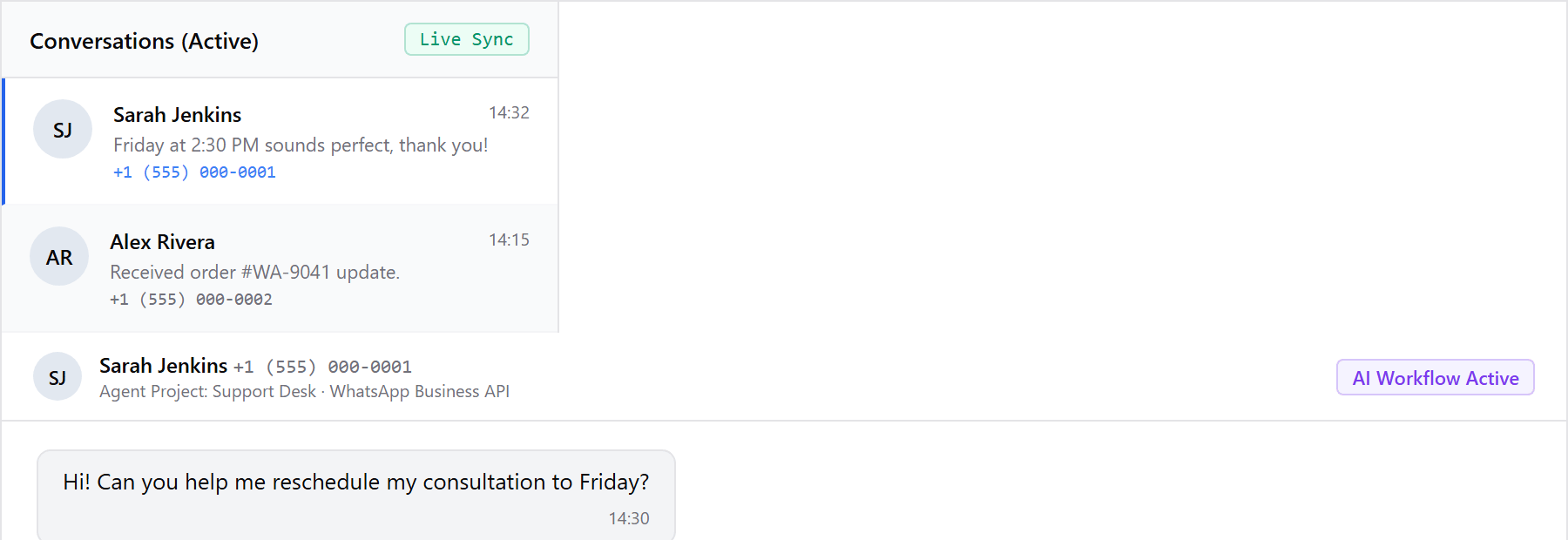


FOR TEAMS AND THE DEVELOPERS BEHIND THEM
Build visually Integrate with code
One platform.
Two ways to build.
Automate the conversations you manage.
Power the product you build.
FOR BUSINESSES
Put WhatsApp to work.
Answer customers with AI, automate follow-ups, and connect your business tools in a visual workflow. Bring your team into the conversation whenever needed.
Explore WhatsApp automationFOR DEVELOPERS
Build WhatsApp into your app.
Send messages from your backend, receive replies through webhooks, and track delivery. Integrate with the WhatsApp API or our Node.js SDK.
Explore the Developer PlatformBUILT FOR DEVELOPERS
Your app.
A few lines of code.
A WhatsApp conversation.
Add WhatsApp messaging to the product you're building. Use our Node.js SDK or call the REST API from your backend.
- Send messages. Text, templates, and media from your application.
- Receive events. Incoming replies and delivery updates through webhooks.
- Test your integration. Simulate sends with a Test Mode API key.
npm install @yanola/whatsapp@betaimport { WhatsAppClient } from "@yanola/whatsapp";
const yanola = new WhatsAppClient({
apiKey: process.env.YANOLA_API_KEY,
baseUrl: "https://api.yanola.ai/v1",
});
const message = await yanola.messages.sendText({
from: "+15557654321",
to: "+15551234567",
body: "Thanks for reaching out. How can we help?",
});
console.log(message.id);Try it on your server with a Test Mode API key and a connected WhatsApp Sender. Replace the example numbers with your own. For live text messages, the customer service window must be open. Setup guide ↗
VISUAL WHATSAPP AUTOMATION
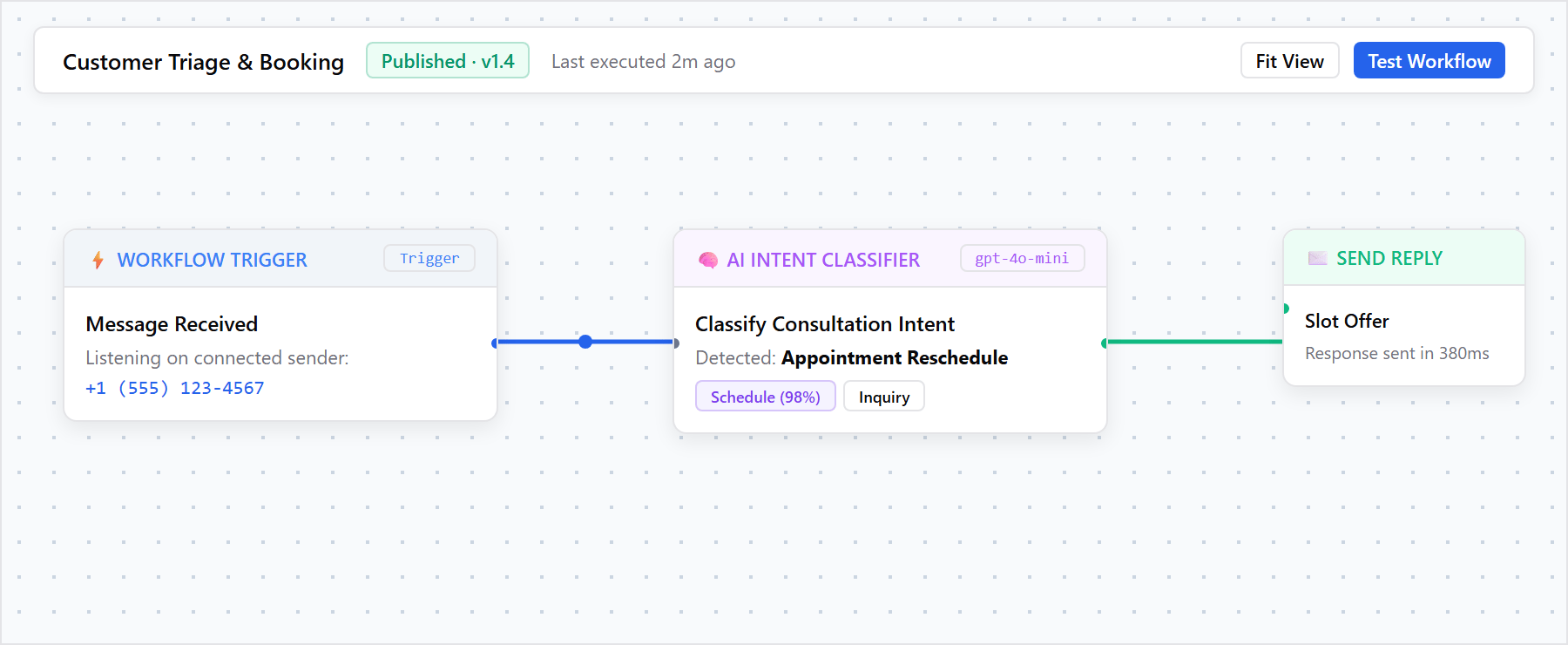
From message to action.
- 01
Connect your WhatsApp number
Create your Agent Project, connect a WhatsApp number, and add the business tools you use.
- 02
Shape the workflow
Start with an incoming message, add AI or ready-to-use actions, and test the result.
- 03
Let it work
Activate your workflow, follow the conversation, and let your team step in when needed.
A clear view of what you use.
Explore pricingYanola Balance
Add balance for usage. Track your consumption and transactions in one place.
Developer Platform
API access for your WhatsApp integration, with subscription limits and usage shown clearly.
A LITTLE MORE CLARITY
Good questions.
What can I build with Yanola?
Automate WhatsApp conversations with AI and visual workflows, or build WhatsApp messaging into your own application with the API and Node.js SDK. Both paths connect your messages to the tools and processes your business uses.
Explore the productsDo I need to write code?
You can build and test workflows visually, using ready-to-configure triggers and actions. When you need more flexibility, add a custom function or connect your application through the Developer Platform.
Build your first workflowCan I add WhatsApp to my own app?
Yes. Use the Yanola REST API from your backend or the @yanola/whatsapp Node.js SDK to send messages, templates, and media. Webhooks bring incoming messages and delivery updates into your application. Start with a Test Mode API key and a connected WhatsApp Sender.
Explore the Developer PlatformHow does WhatsApp fit into a workflow?
Connect a WhatsApp number to your Agent Project. Incoming conversations can start a workflow, which can respond, use connected tools, or hand the conversation over to a person. Message availability depends on your WhatsApp setup and messaging window.
Learn about conversationsHow do balance and subscriptions work?
Yanola Balance covers usage such as workflow runs, scheduled messages, and function executions. A Developer Platform subscription provides API access and its plan limits. You can review activity and charges in Billing.
Understand pricingYOUR NEXT STEP
Make room for
better work.
Your workflow. Your app. Your way to use WhatsApp.